> ## Documentation Index
> Fetch the complete documentation index at: https://docs.plura.ai/llms.txt
> Use this file to discover all available pages before exploring further.
# Overview
> Workflows in Plura AI
## What Are Workflows?
A **Workflow** in Plura AI is a structured conversational system designed to create a natural conversation while ensuring the AI stays on track. It achieves this by breaking interactions into goal-oriented components, each represented by a **node** with a distinct purpose.
Nodes are linked through **decision triggers**, which control the conversation flow based on predefined conditions. This structured approach helps the AI maintain consistency, ensuring a logical sequence while preserving a natural and fluid dialogue experience.
 ## Navigating the Workflow
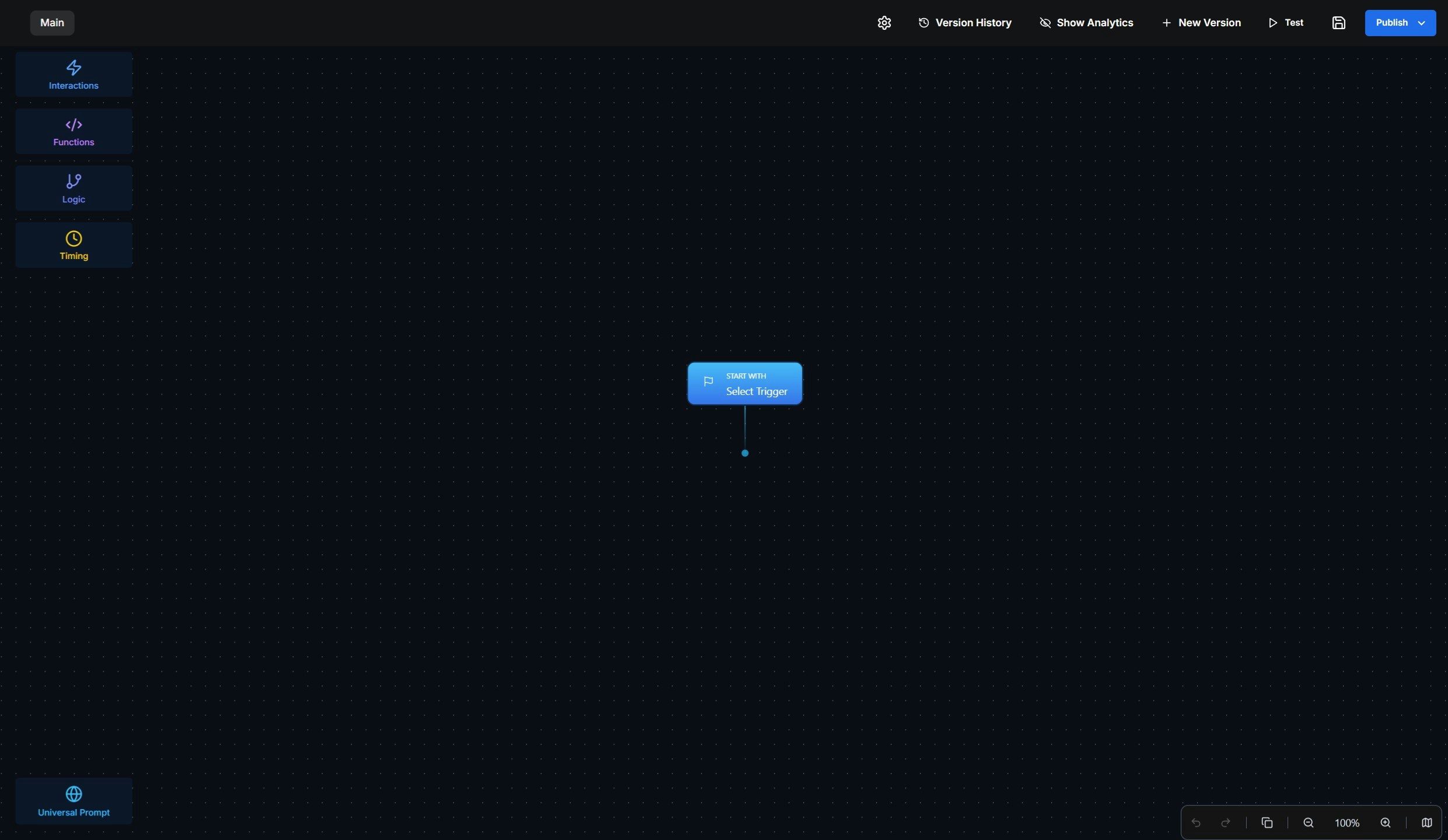
Understanding the workflow interface is essential for building and managing AI-driven conversations effectively. Below is an overview of key navigation components:
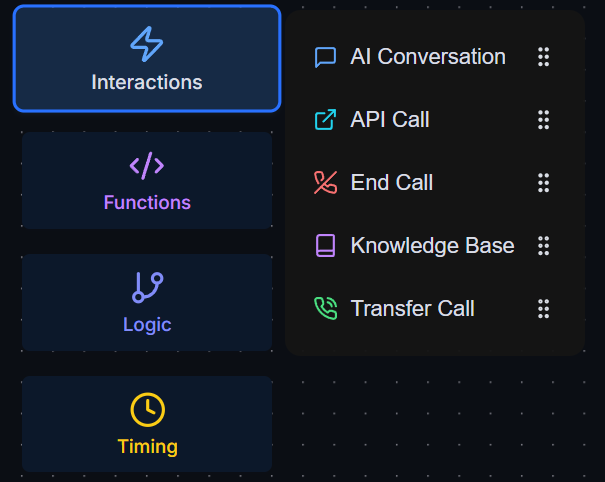
* **Nodes Section:** You can browse the available node types and create them either by clicking on the node you want to add or by dragging and dropping it into the workflow.
## Navigating the Workflow
Understanding the workflow interface is essential for building and managing AI-driven conversations effectively. Below is an overview of key navigation components:
* **Nodes Section:** You can browse the available node types and create them either by clicking on the node you want to add or by dragging and dropping it into the workflow.
 * **Universal Prompt:** A prompt that is always available to the AI, regardless of which node it is on. It helps guide the call and sets the overall tone of the conversation.
 * **Workflow Control Bar:** The Workflow Control Bar contains essential tools for managing different versions, monitoring performance, and testing workflows.
 * **Version History:** View and select different versions of your workflow to track changes and roll back if necessary.
* **Create Version:** Allows you to create a new version of the workflow, maintaining previous iterations.
* **Show Analytics:** Provides insights into the performance of each node, helping you optimize conversation workflow.
* **Test:** Opens the test bench, enabling you to chat or call the workflow and observe its real-time behavior.
* **Save & Publish:** The save button saves the workflow changes, while the publish button deploys the workflow into either development or production.
* **Navigation Bar:** Contains essential tools for managing your workspace, including undo and redo buttons for easy revisions.
* **Version History:** View and select different versions of your workflow to track changes and roll back if necessary.
* **Create Version:** Allows you to create a new version of the workflow, maintaining previous iterations.
* **Show Analytics:** Provides insights into the performance of each node, helping you optimize conversation workflow.
* **Test:** Opens the test bench, enabling you to chat or call the workflow and observe its real-time behavior.
* **Save & Publish:** The save button saves the workflow changes, while the publish button deploys the workflow into either development or production.
* **Navigation Bar:** Contains essential tools for managing your workspace, including undo and redo buttons for easy revisions.
 * **Node Management:** Each node contains three main buttons to help manage and configure its functionality.
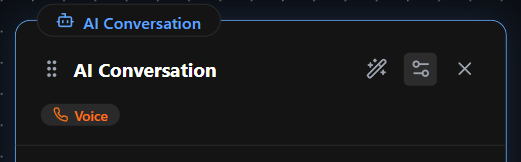 * **Node Wizard:** A feature that simplifies node creation by automatically generating prompts, conditions, and other necessary configurations based on minimal instructions.
* **Edit Button:** Opens the node settings where you can configure its behavior manually.
* **Delete Button:** Removes the node from the workflow.
## Components of a Workflow
A Workflow consists of the following key elements:
Nodes are the building blocks of a Workflow. Each node serves a unique purpose and helps structure the conversation logically.
* **Node Wizard:** A feature that simplifies node creation by automatically generating prompts, conditions, and other necessary configurations based on minimal instructions.
* **Edit Button:** Opens the node settings where you can configure its behavior manually.
* **Delete Button:** Removes the node from the workflow.
## Components of a Workflow
A Workflow consists of the following key elements:
Nodes are the building blocks of a Workflow. Each node serves a unique purpose and helps structure the conversation logically.
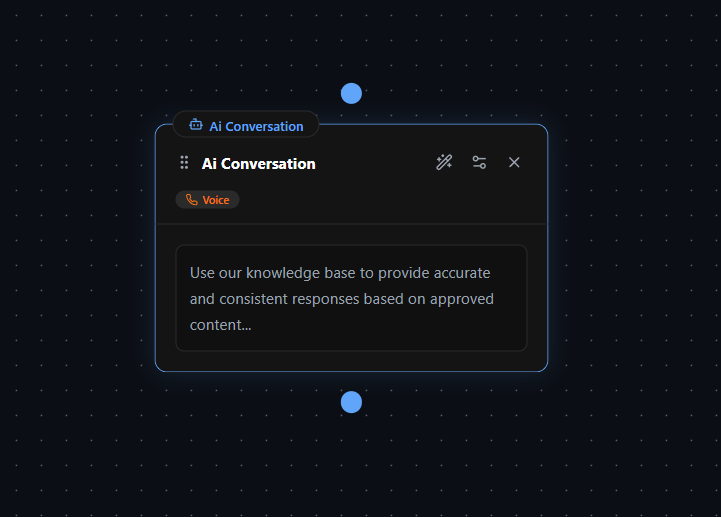 Some of the primary node types include:
* **AI Conversation Node**: The core node where you provide specific instructions to the AI for handling a segment of the conversation.
* **Knowledge Base Node**: Enables the AI to retrieve relevant information from a predefined knowledge source.
* **End Call Node**: Terminates the conversation when a specific outcome is reached.
* **Transfer Call Node**: Redirects the conversation to a human agent or another department.
* **API Call Node**: Allows integration with external systems by making API requests to fetch or send data.
Decision Triggers connect nodes and dictate the flow of a conversation. Each trigger has conditions that must be satisfied before progressing to the next node. The AI cannot move forward unless the specific condition set within the trigger is met.
Some of the primary node types include:
* **AI Conversation Node**: The core node where you provide specific instructions to the AI for handling a segment of the conversation.
* **Knowledge Base Node**: Enables the AI to retrieve relevant information from a predefined knowledge source.
* **End Call Node**: Terminates the conversation when a specific outcome is reached.
* **Transfer Call Node**: Redirects the conversation to a human agent or another department.
* **API Call Node**: Allows integration with external systems by making API requests to fetch or send data.
Decision Triggers connect nodes and dictate the flow of a conversation. Each trigger has conditions that must be satisfied before progressing to the next node. The AI cannot move forward unless the specific condition set within the trigger is met.
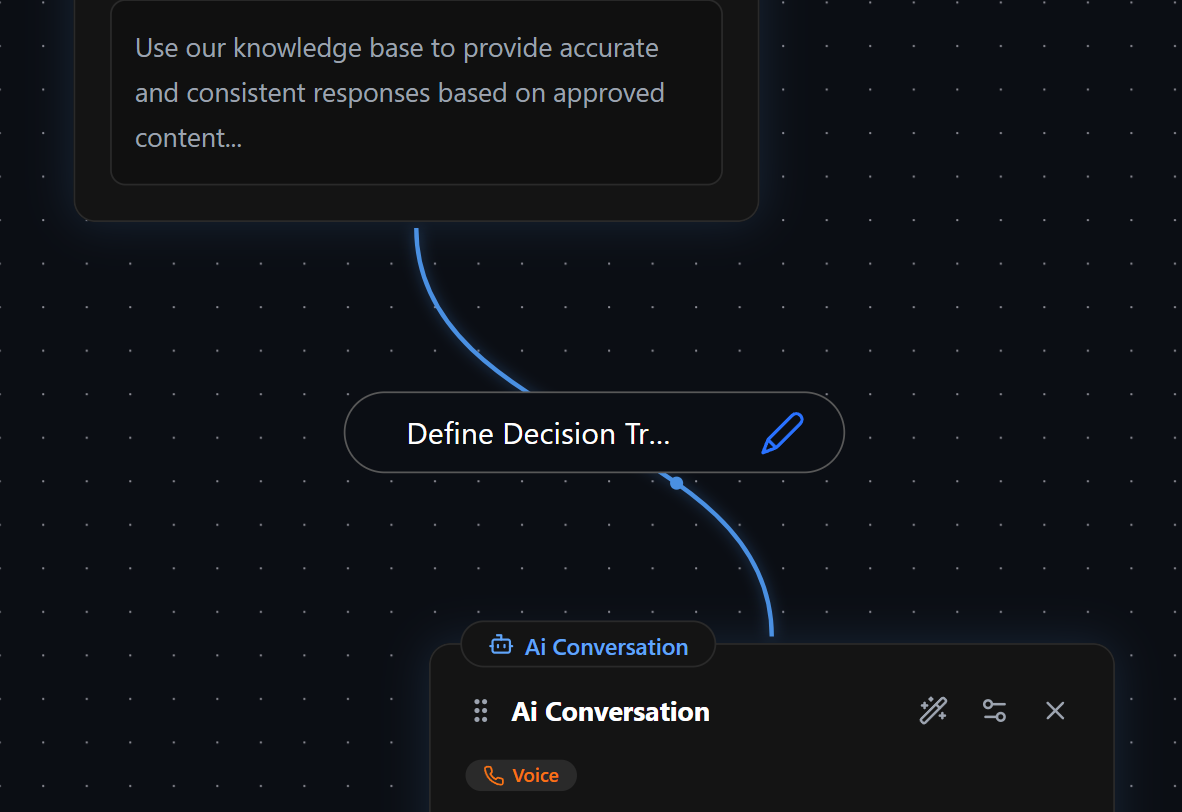 Decision Triggers create dynamic conversations by allowing different outcomes based on user responses. A single node can have multiple Decision Triggers, each activating under specific circumstances, ensuring that the conversation adapts fluidly to the user’s input.
The **Universal Prompt** is a predefined prompt that remains active throughout the entire workflow, regardless of which node the AI is currently on.
It plays a crucial role in guiding the call, maintaining context, and ensuring a consistent tone throughout the interaction.
## Why Use Workflows?
* **Consistency**: Ensures that AI follows a structured and logical conversation flow.
* **Modularity**: Allows different parts of the conversation to be broken into manageable segments.
* **Flexibility**: Enables dynamic routing based on real-time inputs and conditions.
* **Scalability**: Facilitates building complex conversational systems without overwhelming the AI with excessive instructions at once.
By organizing AI conversations into Workflows, Plura AI enhances interaction quality, making AI-driven conversations more effective and user-friendly.
Decision Triggers create dynamic conversations by allowing different outcomes based on user responses. A single node can have multiple Decision Triggers, each activating under specific circumstances, ensuring that the conversation adapts fluidly to the user’s input.
The **Universal Prompt** is a predefined prompt that remains active throughout the entire workflow, regardless of which node the AI is currently on.
It plays a crucial role in guiding the call, maintaining context, and ensuring a consistent tone throughout the interaction.
## Why Use Workflows?
* **Consistency**: Ensures that AI follows a structured and logical conversation flow.
* **Modularity**: Allows different parts of the conversation to be broken into manageable segments.
* **Flexibility**: Enables dynamic routing based on real-time inputs and conditions.
* **Scalability**: Facilitates building complex conversational systems without overwhelming the AI with excessive instructions at once.
By organizing AI conversations into Workflows, Plura AI enhances interaction quality, making AI-driven conversations more effective and user-friendly.